Edit Image AI for scientific figure revisions
Use Edit Image to revise an existing scientific figure draft with plain-language instructions. Keep the research meaning stable while improving arrows, labels, layout, and visual clarity.
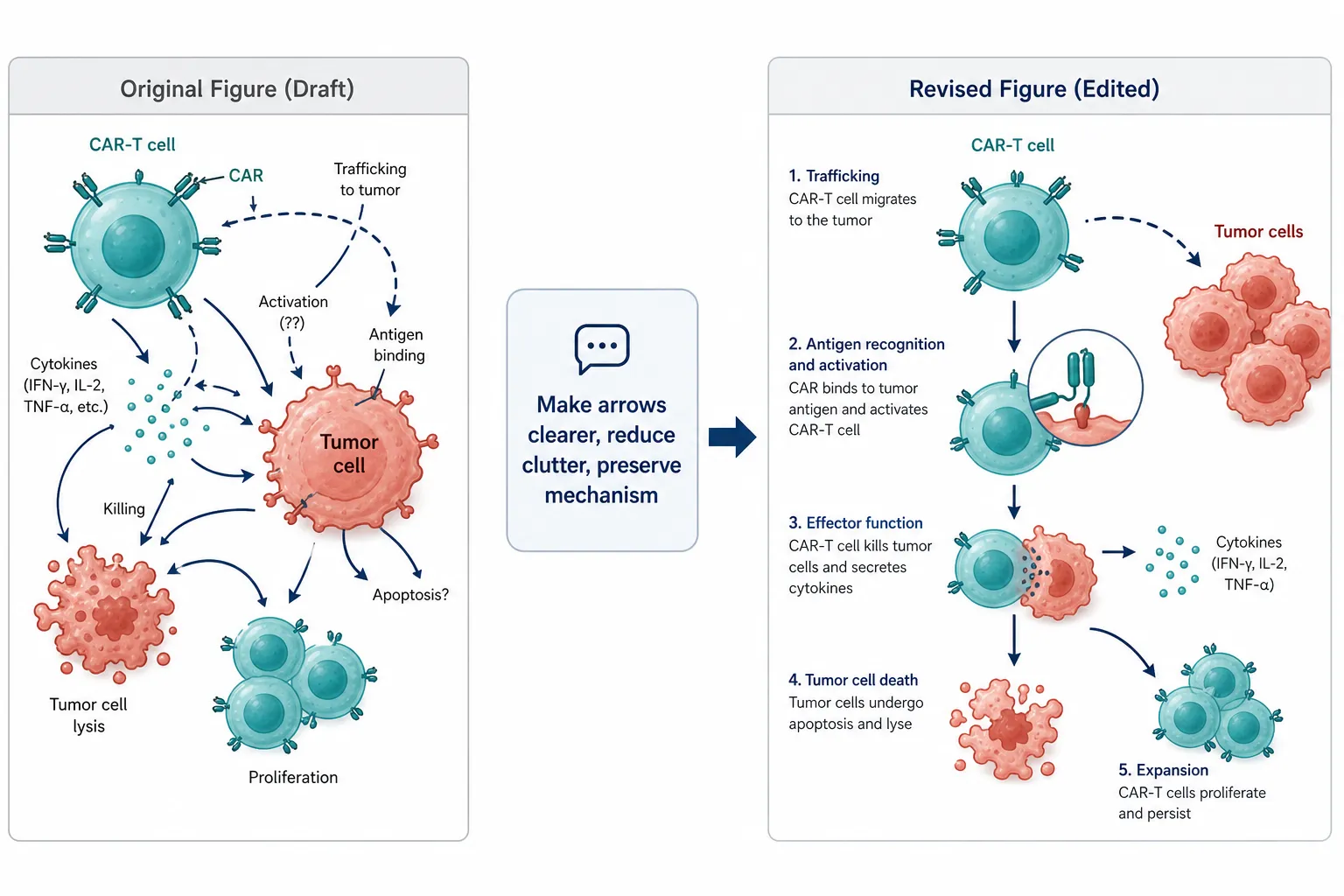
Text-guided figure revision
Edit Image
Use Edit Image without starting over
This workflow is designed for drafts that are scientifically close but visually unfinished. Start from a generated image or uploaded reference, then request a cleaner version without rebuilding the figure from scratch.
Where Edit Image improves scientific drafts
This page focuses on one search intent: how to edit a scientific image with AI while preserving the underlying research context. The feature works best when the draft already has the right idea, but the communication needs refinement.
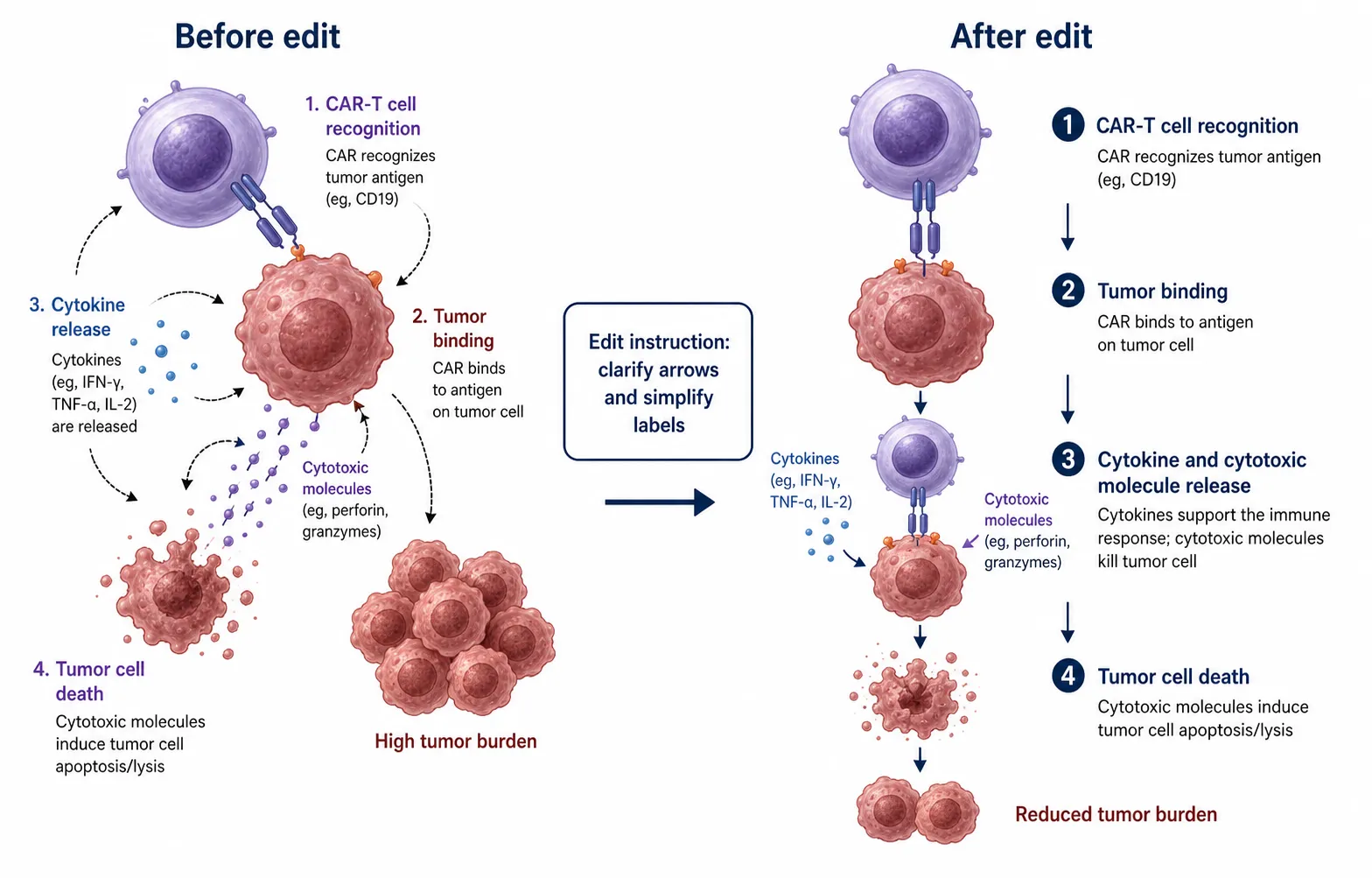
Edit Image example for CAR-T tumor immune response
A strong revision prompt says what to improve and what to preserve. In this example, the source figure keeps the CAR-T tumor response mechanism, while the edited version improves sequence, arrows, labels, and spacing.
Copy-ready edit direction
Edit this scientific mechanism figure to clarify CAR-T cell recognition, tumor binding, cytokine release, cytotoxic molecule release, and reduced tumor burden. Preserve the same biological meaning, simplify crowded labels, align the arrows, and make the revised figure easier to read for a research presentation.
Create a new saved version
Scientific image editing should be iterative, but each revision should remain traceable. The editor saves the edited output as a new result so you can compare versions instead of losing the original draft.
Common questions
Edit Image AI for scientific figure revisions
Use Edit Image to revise an existing scientific figure draft with plain-language instructions. Keep the research meaning stable while improving arrows, labels, layout, and visual clarity.
Start Editing